Lightning Flow — automation without code
What Are Salesforce Lightning Flows? A Beginner's Guide
What Is Automation?
Automation means letting the system perform tasks automatically without human intervention. In Salesforce, automation allows the system to react when data changes, apply business rules consistently, perform actions automatically, and reduce manual dependency.
In simple words: Automation ensures that Salesforce "thinks and acts" based on defined rules.
Why Automation Is Needed in Salesforce
Salesforce manages business data such as Leads, Accounts, Opportunities, and Cases. In real business scenarios, users perform many repetitive actions — updating fields when a record is created, sending emails on status changes, creating related records automatically, ensuring business rules are followed. If done manually, it takes more time, mistakes happen, and data becomes inconsistent. Automation solves these problems.
What Is a Salesforce Flow?
A Salesforce Flow is a powerful automation tool that allows you to automate business processes without writing code. Using Flow, you tell Salesforce to perform actions automatically, instead of relying on users to do them manually every time. This ensures business processes run consistently, accurately, and efficiently.
One of the most important features: Flow is configuration-based. You build Flows using Flow Builder, a visual drag‑and‑drop interface where you design logic step by step. Because it's configuration:
- Easy to understand and maintain
- Both admins and developers can work with them
- Changes can be made quickly without complex deployments
In simple words, a Salesforce Flow is a step‑by‑step set of instructions that tells Salesforce exactly: what action to perform (update a record, send email, show screen), when to perform it (record created, button click), and how (based on conditions, calculations).
Once a Flow is activated, Salesforce runs it automatically — no manual intervention required, business rules enforced consistently.
What can Salesforce Flows do? They handle a wide range of activities: react to record changes, guide users through screens, perform calculations, create/update/delete records, and even call external systems via HTTP callouts. They make day‑to‑day work faster and more reliable.
one automation framework — endless possibilities
A Flow Can React to Record Changes
Automatically run when a record is created, updated, or deleted. Update fields, assign owners, send notifications — every time, without relying on users.
A Flow Can Guide Users Through Screens
Screen Flows interact with users: display screens, ask for input, move based on answers. Perfect for guided forms, wizards, or multi‑step data entry.
A Flow Can Perform Calculations
Calculate totals, percentages, date differences, or set status values based on conditions — automatically and consistently, removing manual calculations.
A Flow Can Create, Update, or Delete Records
Core DML operations: create a Task when a Lead is created, update Status when condition met, or delete outdated records automatically.
A Flow Can Call External Systems
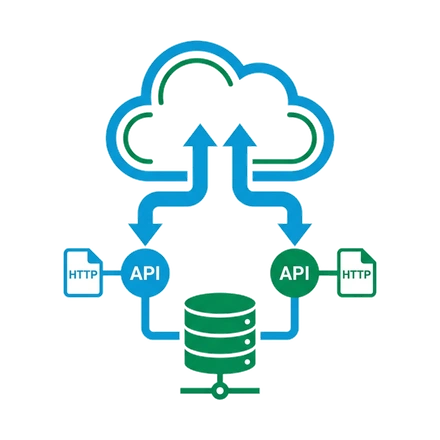
With HTTP Callouts, a Flow can send data to or fetch data from external apps — powerful integration without code.
Why Salesforce Introduced Lightning Flows
Before Lightning Flows, automation mainly used Workflow Rules and Process Builder. Workflow Rules handled simple updates/emails but limited logic. Process Builder offered more flexibility but became hard to manage, had performance issues, and debugging was difficult. Logic was spread across tools, making automation fragmented.
Lightning Flows were introduced to unify automation into one powerful solution, supporting both simple and complex logic, reducing Apex dependency, and improving scalability. Today Flow is the primary, recommended automation tool in Salesforce.
What Problems Flows Solve
- Eliminate manual work — repetitive tasks happen automatically.
- Enforce business rules — rules applied the same way every time.
- Improve data quality — auto‑populate fields, validate conditions.
- Reduce Apex dependency — many use cases handled declaratively.
- Make automation easier to understand — visual interface.
- Enable admin + dev collaboration — common platform.
evolution of Salesforce automation
Types of Salesforce Lightning Flows
I. Record-Triggered Flow
Runs automatically when a record is created, updated, or deleted. Background automation — users don't see it. Use: update fields, assign owners, create related records, enforce business rules. Example: when a Lead is created, auto‑assign owner.
II. Screen Flow
Interacts with users: displays screens, collects input, guides step‑by‑step. Acts like a wizard. Example: multi‑step Lead creation form.
III. Scheduled Flow
Runs at a specific time or on a schedule. Time‑based automation: send reminders, update records periodically. Example: follow‑up reminders for Leads not contacted in 5 days.
IV. Autolaunched Flow
Runs in background, no screens. Invoked by Apex, other Flows, or actions. Reusable logic. Example: update related records when called from a button.
How Are Flows Created? (Flow Builder)
Flows are built using Flow Builder — a visual drag‑and‑drop interface. You add elements (steps) on a canvas, connect them, define conditions and actions. Each element performs one function.
Key Elements in Flow Builder
- Start — defines how the Flow begins (record change, user launch, schedule).
- Assignment — set or update variable values (prepare data).
- Decision — IF/ELSE logic, choose path based on conditions.
- Get Records — query records from Salesforce.
- Create / Update Records — DML operations.
- Action — special operations: email, Apex call, callout, approval.
- Screen — display UI (only in Screen Flows).
visual steps = business logic
How a Flow Works Internally
When a Flow runs, Salesforce creates an execution context — a temporary environment where the Flow runs, variables are initialized, and elements execute one by one. Decisions control the path, actions are performed, and after the last step the Flow ends (or waits). Salesforce manages transactions, governor limits, and error handling automatically to ensure data consistency and system stability.
Real-World Examples of Flows
- Lead Auto‑Assignment: Lead created → Flow checks Lead source → assigns owner automatically.
- Case Escalation: Case status changes → Flow checks priority → sends alert to manager.
When to Use Flow vs Apex
Salesforce provides two main ways to automate: declarative (Flow) and programmatic (Apex).
✅ Use Flow when
- Logic is straightforward, event‑driven
- No complex loops / high volume
- Faster dev, easier maintenance
⚡ Use Apex when
- Very complex logic, advanced algorithms
- High‑volume batch processing
- Advanced error handling needed
In real projects, Flow + Apex together are common: Flow orchestrates, Apex does heavy lifting. Call Apex from Flow when needed.
Best Practices
- Start simple — validate requirements early, add complexity later.
- Use meaningful names for Flows, variables, elements — readability matters.
- Test thoroughly — valid data, missing data, edge cases, bulk.
- Avoid unnecessary complexity — keep Flows focused.
- Understand the business requirement first — then design.
Summary: Why Salesforce Flow Matters
- Reduces manual work and user effort
- Improves data accuracy and reliability
- Minimizes dependency on Apex
- Simplifies automation maintenance
- Supports real‑world business processes
Salesforce Flow is a core skill for any Salesforce professional and the foundation of modern automation.